
A powerful tool for monitoring, managing, and discovering Onvif-compatible devices such as IP cameras.
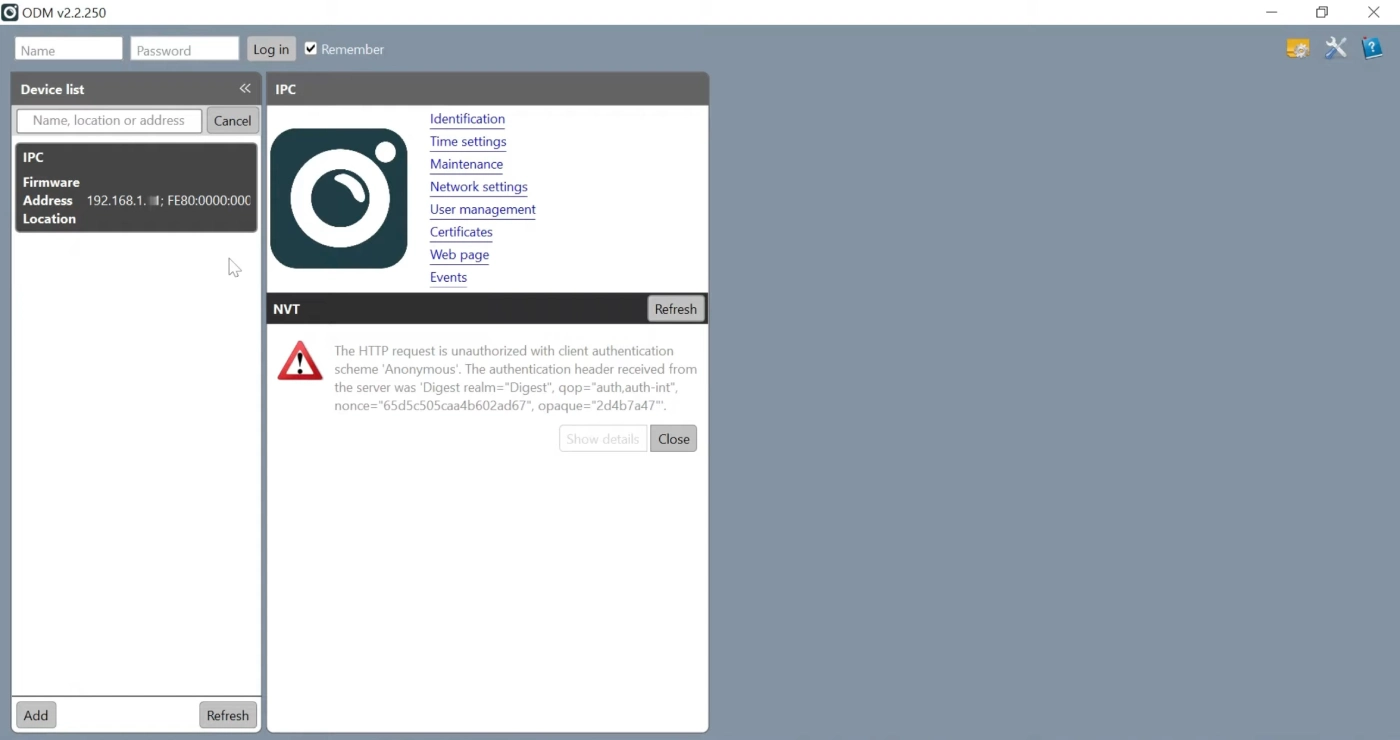
Do you feel managing and configuring IP cameras is a big headache? And, you want to control cameras and all Invid devices smoothly? If yes! Then the ONVIF Device Manager is designed just for you.
This powerful tool can make discovering and controlling ONVIF-compatible devices easy. With this tool, you can easily set up a new CCTV system, monitor network cameras, or network video recorders and other surveillance equipment.
The ODM has a quick and easy device discovery feature. With this, you can easily discover ONVIF-compatible devices and add them to your network. So, for better security, you can easily add new cameras and NVRs.
To make the process simpler and easier, ODM offers a live monitoring and viewing option. You can live view all cameras and also playback recorded footage from your device.
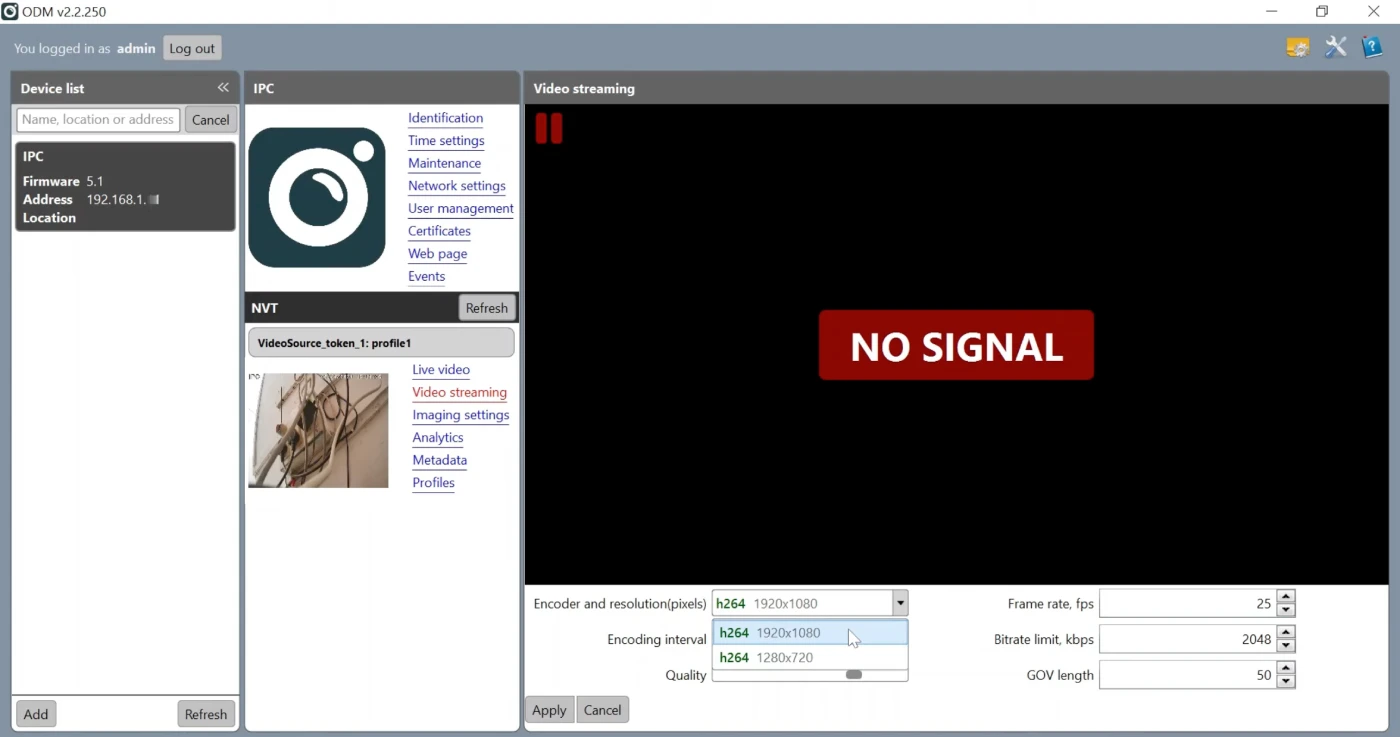
ODM allows you to configure camera settings. Like, you can adjust network settings, video profiles, and user access. All these settings ensure that you have a smooth device performance and proper integration.
You can also check and update device firmware to keep cameras secure and up to date. With the firmware updates, you can improve stability and add new features.
ONVIF Device Manager provides full PTZ (Pan-Tilt-Zoom) control for supported cameras. This PTZ control allows you to move the camera left, right, up, or down and also zoom in and out to focus on specific objects.
ONVIF Device Manager supports configuration backup and recovery. So, this feature allows you to quickly restore all settings if a device fails or resets.
Version 2.2.250 | Installer (.exe)
Download for WindowsRequires .NET Framework 4.5+
| Name | Date | Size |
|---|
Download the Windows installer file (.exe) compatible with your system. open the file and follow the on-screen instructions for installation.
Click on the search or discover option to find all ONVIF-compatible cameras on your network.
If you are unable to find a device, you can manually add it by entering the IP address, port, and login credentials.
No, not all cameras are compatible with ODM. One camera from the brands Honeywell, Panasonic, Dynacolor, Sony, Samsung, Arecont Vision, and a few others can be connected with the ODM software.
You can fix the device not connected issue by checking your network connection, ensuring the camera and PC are connected to the same network, and by disabling firewalls.
The default login credentials of almost all Onvif devices are username: admin and password: admin.